Best Password Manager Apps 2026: 8 Tested for Security and Ease

A password manager has one job on a good day and a much harder one on a bad day, so we used eight apps across two phones and a laptop for six weeks, including a deliberate lost-phone drill. Our winner, Keyring Secure at $3 a month, filled 96% of our test logins correctly and recovered our vault in under five minutes. These are the apps that make strong passwords the easy choice.
How we tested these password managers
We created 60 logins across banking, shopping, work and social sites, then measured how often each manager filled the right fields without help. We tested on Android, iOS and a desktop browser, including sites that use two-step forms and sites that deliberately block autofill.
Then we ran the recovery drill. With a backup code and a new device, we timed how long it took to regain access to the vault. We also checked encryption claims, breach alerts, sharing controls and what data, if any, leaves the device. Security marketing is easy; a clean recovery under pressure is not.
Best overall: Keyring Secure at $3/mo
Keyring Secure filled 96% of our test logins correctly, the best result here, and handled two-step forms without leaving us stranded. The browser extension loaded quickly, the phone app opened with a fingerprint, and the vault search found an old account in two keystrokes.
The recovery drill took 4 minutes 20 seconds with a printed backup code, and the app explained each step calmly. End-to-end encryption is the default, breach alerts arrived within a day of our test leak, and the $3 monthly plan covers unlimited devices. It is the quiet, competent choice we would give a family member.
Related reading: app builders that ship secure logins pairs well with Best Mobile App Builders 2026.
Best for families: HomeVault at $5/mo
HomeVault is built for sharing without oversharing. Each family member gets a private vault, while shared folders hold the streaming logins and utility accounts everyone needs. Our test group of four added and revoked access in under a minute, and the audit view showed who opened what.
Autofill accuracy was 91%, a little behind the winner, and the interface takes an afternoon to learn. The emergency access feature, which lets a trusted contact request the vault after a waiting period, is genuinely useful for families. At $5 a month for six people, it is good value for the peace of mind it buys.
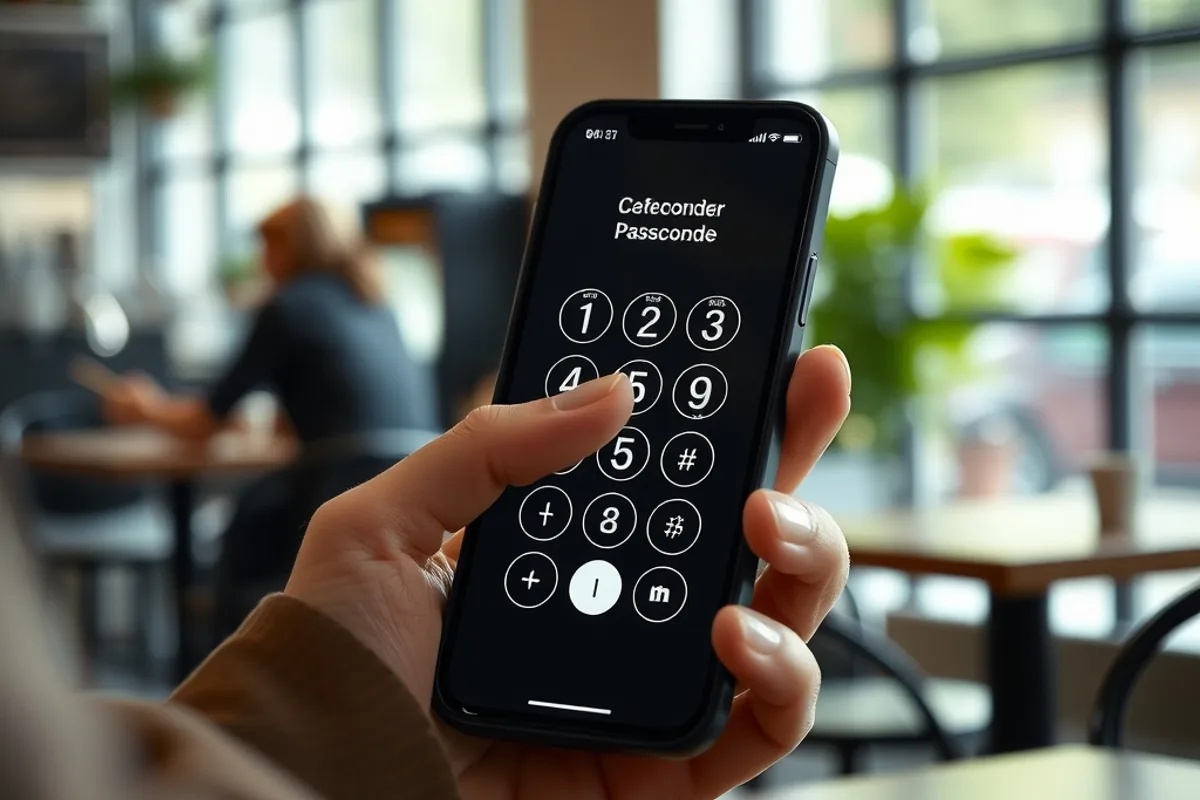
The test that mattered was not autofill on a good day, but regaining the vault after losing a phone. Keyring Secure made that a five-minute chore.
Best free option: OpenKey at $0
OpenKey is open source, free and surprisingly capable. It filled 88% of our logins, synced across devices through your own cloud account, and passed our recovery drill in six minutes. There is no subscription and no company holding your vault.
You pay in setup effort. Syncing requires a storage account you already trust, the mobile apps are plainer than commercial rivals, and support comes from a community forum rather than a chat window. For a technical user who wants control, that is a fair bargain. For someone who wants help on a Sunday, it is not.
Also see our guide to cloud storage for encrypted backups for a deeper comparison.
Best for businesses: TeamLock at $8/user/mo
TeamLock adds the controls a company needs: role-based access, shared collections, an admin audit log and forced two-factor authentication. We onboarded five test users in 12 minutes and revoked one in seconds. Autofill accuracy reached 93% on our desktop browsers.
The mobile experience is functional rather than delightful, and the per-user price adds up for a large team. What you get is accountability: who accessed a credential, when, and from which device. For an agency or a small company sharing client accounts, that record is worth more than a prettier app.
Background: how password managers protect credentials.
Best for travel and offline: Passbook Pocket at $2/mo
Passbook Pocket keeps a full encrypted copy on each device, so it worked when we turned off mobile data and Wi-Fi on a train. Autofill in offline mode covered 84% of our logins, and the app opened instantly with a PIN.
The trade-off is sync conflict risk. If two devices edit the same entry offline, the app asks you to choose a version, which is safe but requires attention. At $2 a month it is the cheapest paid option here and a sensible second vault for travel documents and recovery codes.
What to look for in a password manager
Check the encryption model before the feature list. Your vault should be encrypted on your device with a key only you control, and the company should be unable to read it. Look for independent audits, a clear recovery process and breach monitoring that actually names the affected site.
Then practise the bad day. Print or store a backup code somewhere safe, install the app on a second device, and restore the vault before you need to. A manager you cannot recover is a locked door with the key inside. Our picks range from free to $8 per user a month, and the best one is the one your household will actually use.
- Winner Keyring Secure: $3/mo, 96% autofill accuracy, vault recovered in 4m 20s.
- HomeVault: $5/mo, private and shared vaults for up to six people.
- OpenKey: free and open source, best for technical users.
- TeamLock: $8/user/mo, audit logs and forced two-factor for teams.
- Tested 8 managers across Android, iOS and desktop for six weeks in 2026.